Start where it is clean
Begin at the BPM where the part feels controlled. You are building accuracy, not testing luck.
Automatic tempo training
Increase the tempo automatically while you practice guitar, bass, or drums. Choose a ready-made progression or set the BPM and repetitions for each stage, then play along with real drum grooves without reaching for the tempo control.
Difficult solos, fast riffs, and awkward passages are mastered by adding speed without losing the detail. Plan a route from the BPM you can play cleanly to the BPM the song needs, then make every solid repetition count.
Begin at the BPM where the part feels controlled. You are building accuracy, not testing luck.
Each small step asks more of the same phrase without turning a clean run into a sloppy one.
Keep the final tempo in sight and repeat the ladder until the part belongs in the track.
Real screens, real controls, and the exact path you use when you open this part of the studio.
The active stage, target, repetition count, groove, and transport stay together while the routine moves forward.
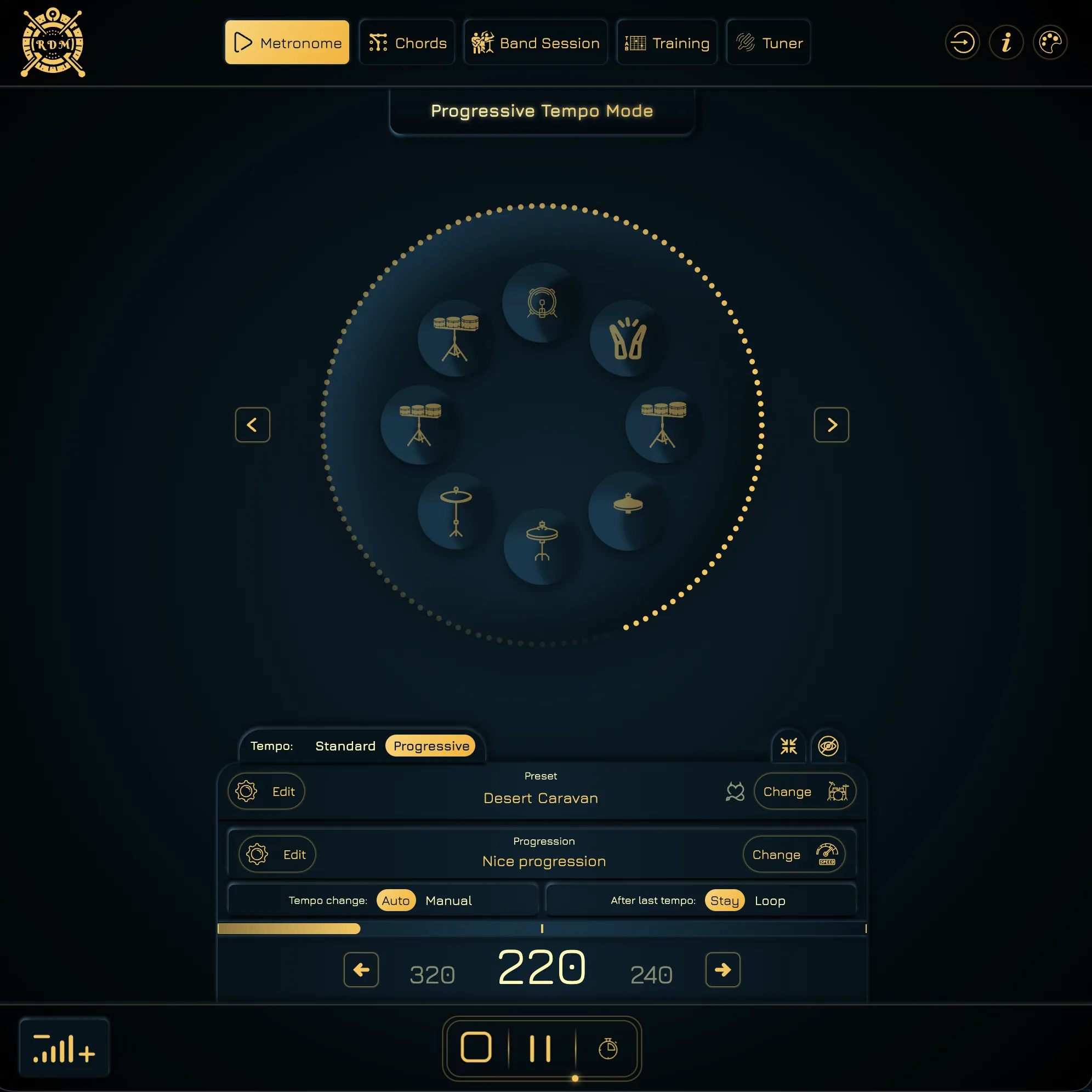
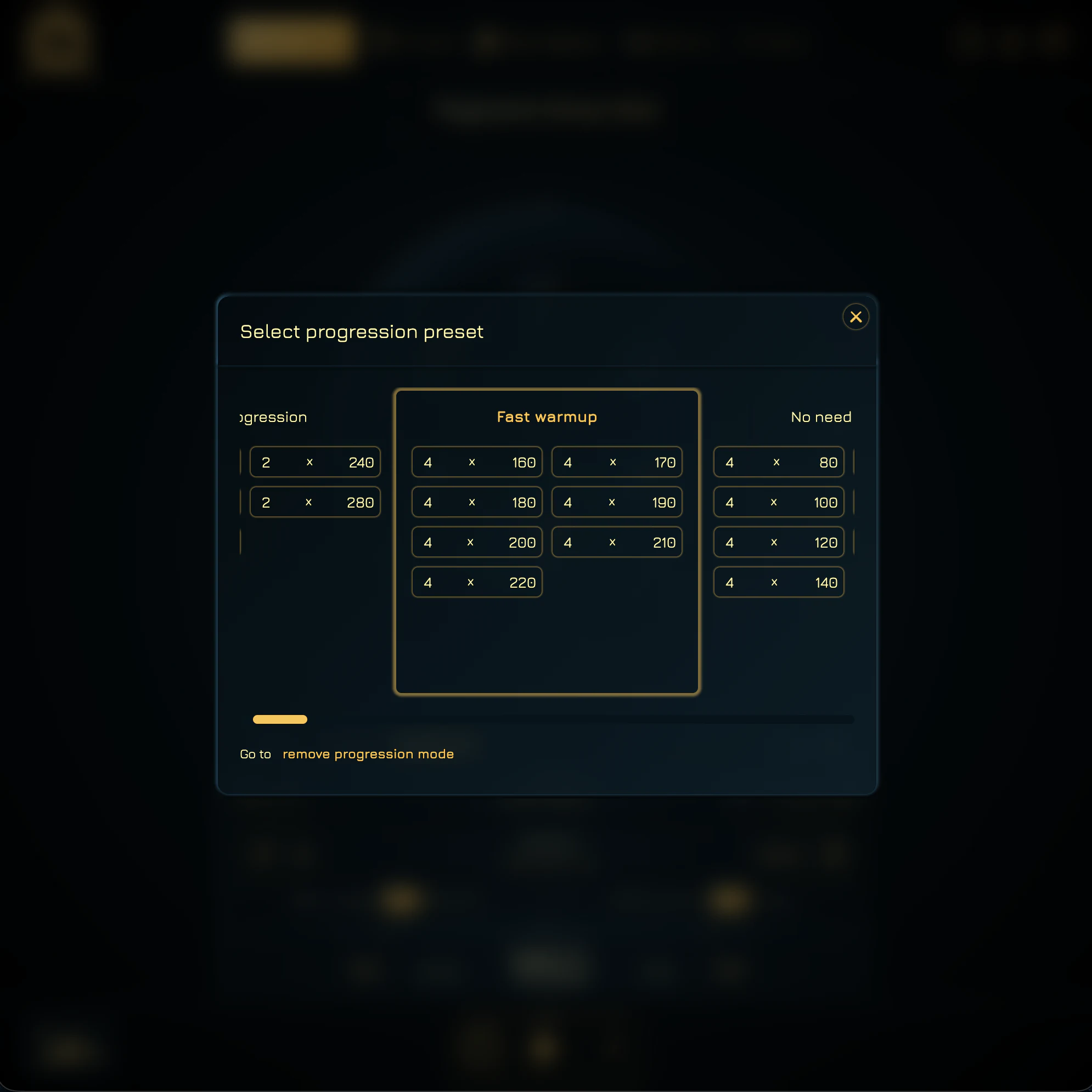
Pick a built-in tempo plan such as Fast warmup when you want to begin immediately. Its BPM stages and repetition counts are already set, so there is nothing to configure before the first rep.
Create the exact BPM stages and repetition counts a solo, warmup, technique drill, or difficult passage needs — then save the routine.
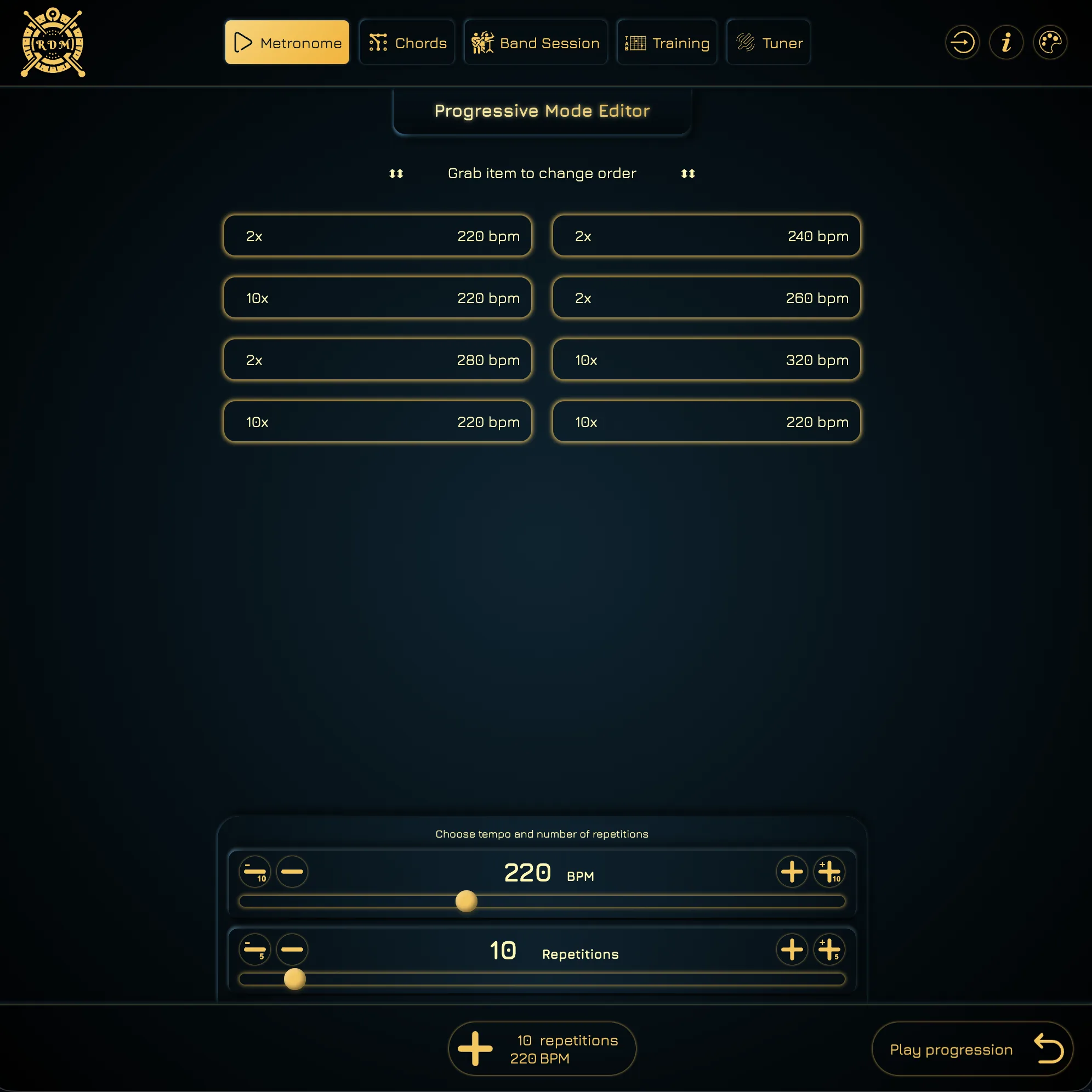
Select Start a Tempo Workout to open the editor. Edit the existing tempo stages or remove the ones you do not need. Choose a short riff, scale pattern, or picking exercise you can play cleanly at 60 BPM.
Arrange your stages in this order: 60, 65, 70, 75, 80, 85, and 90 BPM. Select a stage to edit its tempo, or use the plus button to add another. Each change will raise the tempo by 5 BPM.
Set Repetitions to 4 for each stage. One repetition plays the full selected drum groove. With a one-bar groove, the tempo increases every four bars; a longer groove keeps you at each BPM for longer.
Select Play progression, choose your drum groove, and set Tempo change to Auto. Press play to move from 60 to 90 BPM without adjusting the tempo by hand. If a stage feels too fast, switch to Manual to stay at that BPM or lower the tempos in the editor.
Use a ready-made plan when you just want to play, or take full control of every BPM step. Either way, each increase stays deliberate instead of becoming a rushed guess.
Choose a built-in tempo workout with the stages and repetition counts already prepared.
Advance to the next BPM after the repetitions you set, or switch to Manual to keep practicing at the current tempo.
Shape the exact BPM ladder and repetition count that fits your exercise.
Build speed against real drum sounds instead of a sterile click.
Pick a ready-made progression or build a tempo ladder around the part you are learning, then let clean repetitions move it forward.